2017/07/01

[转]繼續閱讀懶人加強版: [BLOGGER]繼續閱讀懶人加強版 - [版本2.x]參數設定說明

繼續閱讀懶人加強版: [BLOGGER]繼續閱讀懶人加強版 - [版本2.x]參數設定說明

可設定部份為程式碼後段,如下所示紅色字的部份


<script src="http://ajax.googleapis.com/ajax/libs/jquery/1.3.2/jquery.min.js" type="text/javascript"></script>
<script src="https://storage.googleapis.com/google-code-archive-downloads/v2/code.google.com/cjh829-easy-read-more/cjh829-easy-read-more-2.2.1.js" type="text/javascript"></script>
<script>
EasyReadMoreSettings.Enabled = true;
EasyReadMoreSettings.Read_More_Mode = 'mix';
EasyReadMoreSettings.Mode_Auto_MaxLine = 3;
EasyReadMoreSettings.Mode_Custom_Tag_Type = 'text';
EasyReadMoreSettings.Mode_Custom_Tag_Expr = '##ReadMore##';
EasyReadMoreSettings.Link_Style = 'directlink';
EasyReadMoreSettings.Link_Text = '...繼續閱讀';
EasyReadMoreSettings.Link_Text_title = '繼續閱讀';
EasyReadMoreSettings.Collapse_Link_Text = '顯示摘要...';
EasyReadMoreSettings.Collapse_Link_Text_title = '顯示摘要';
EasyReadMoreSettings.Collapse_MoveToEnd = false;
EasyReadMoreSettings.Collapse_ScrollBack_Target = 'none';
EasyReadMoreSettings.Collapse_Effect = 'none';
EasyReadMoreSettings.Collapse_Effect_Speed = 'normal';
EasyReadMoreSettings.Index_Page_Style = 'abstract';
EasyReadMoreSettings.Tag_Page_Style = 'title';
EasyReadMoreSettings.Archive_Page_Style = 'title';
EasyReadMoreSettings.Controller_Enabled = true;
EasyReadMoreSettings.Controller_Default_Position = true;
EasyReadMoreSettings.Controller_Splitter = ' | ';
EasyReadMoreSettings.Controller_Full_Text = '完整';
EasyReadMoreSettings.Controller_Abstract_Text = '摘要';
EasyReadMoreSettings.Controller_Title_Text = '標題';
EasyReadMoreSettings.ShowFullPost_Tag = '##ShowAll##';
EasyReadMoreSettings.PostTitleClassSelector = 'post-title';
EasyReadMoreSettings.PostBodyClassSelector = 'post-body';
EasyReadMoreSettings.PostsBlockSelector = 'div.blog-posts';
</script>

<script>EasyReadMore.main()</script>
按順序逐一說明如下:

1.縮文(繼續閱讀)模式設定(預設值:mix模式)
  • Auto模式:EasyReadMoreSettings.Read_More_Mode = 'auto';
  • Custom模式:EasyReadMoreSettings.Read_More_Mode = 'custom';
  • Mix模式:EasyReadMoreSettings.Read_More_Mode = 'mix';
2.Auto模式下,文章最大行數(超過就自動縮文) (預設值:3行)
EasyReadMoreSettings.Mode_Auto_MaxLine = 3;
數字'3'改成想要的行數即可

3.Custom模式下,代表繼續閱讀的特殊符號(預設值:##ReadMore##)
支援阿土伯版本的符號(##CONTINUE##)
以及一般常見的<span id='fullpost'> 或 <span class='fullpost'>

範例:
相容阿土伯版本的符號
EasyReadMoreSettings.Mode_Custom_Tag_Type = 'text';
EasyReadMoreSettings.Mode_Custom_Tag_Expr = '##CONTINUE##';


相容<span id='fullpost'>
EasyReadMoreSettings.Mode_Custom_Tag_Type = 'id';
EasyReadMoreSettings.Mode_Custom_Tag_Expr = 'fullpost';


相容<span class='fullpost'>
EasyReadMoreSettings.Mode_Custom_Tag_Type = 'class';
EasyReadMoreSettings.Mode_Custom_Tag_Expr = 'fullpost';


4.設定繼續閱讀連結樣式(預設值:directlink(直接連結))
  • 直接連結:EasyReadMoreSettings.Link_Style = 'directlink';
  • 展開/收合:EasyReadMoreSettings.Link_Style = 'collapsible';
5.設定繼續閱讀按鈕顯示文字,以及連結的title屬性
顯示文字:
EasyReadMoreSettings.Link_Text = '...繼續閱讀';
連結title屬性:
EasyReadMoreSettings.Link_Text_title = '繼續閱讀';

6.設定收合按鈕顯示文字,以及連結的title屬性(只有在樣式設定為「展開/收合」時才有效)
顯示文字:
EasyReadMoreSettings.Collapse_Link_Text = '顯示摘要...';
連結title屬性:
EasyReadMoreSettings.Collapse_Link_Text_title = '顯示摘要';

7.文章展開後,收合按鈕是否移動(只有在樣式設定為「展開/收合」時才有效)(預設值:不移動)
不移動,取代繼續閱讀按鈕
EasyReadMoreSettings.Collapse_MoveToEnd = false;
繼續閱讀按鈕消失,收合按鈕出現在文章最後
EasyReadMoreSettings.Collapse_MoveToEnd = true;

8.按下收合按鈕時,文章是否自動捲回(只有在樣式設定為「展開/收合」,且收合按鈕設定移動到文章結尾,才有效)(預設值:自動捲回至文章標題)
自動捲回至「文章標題」
EasyReadMoreSettings.Collapse_ScrollBack_Target = 'title';
自動捲回至「繼續閱讀連結處」
EasyReadMoreSettings.Collapse_ScrollBack_Target = 'link';
不執行自動捲回
EasyReadMoreSettings.Collapse_ScrollBack_Target = 'none';

9.設定展開/收和動畫效果(只有在樣式設定為「展開/收合」時才有效)(預設值:沒有動畫)
沒有動畫(none)
EasyReadMoreSettings.Collapse_Effect = 'none';
滑動(slide)
EasyReadMoreSettings.Collapse_Effect = 'slide';
淡入淡出(fade)
EasyReadMoreSettings.Collapse_Effect = 'fade';

10.設定展開/收和動畫速度(只有在樣式設定為「展開/收合」時才有效)(預設值:正常)
速度慢
EasyReadMoreSettings.Collapse_Effect_Speed = 'slow';
速度正常
EasyReadMoreSettings.Collapse_Effect_Speed = 'normal';
速度快
EasyReadMoreSettings.Collapse_Effect_Speed = 'fast';

11.設定各頁面預設顯示方式,有三種:
  • 繼續閱讀(摘要) - abstract
  • 只有標題 - title
  • 全文 - full
設定blog首頁:(預設值:摘要)
EasyReadMoreSettings.Index_Page_Style = 'abstract';
設定標籤(tag)分類頁:(預設值:標題)
EasyReadMoreSettings.Tag_Page_Style = 'title';
設定blog存檔(archive)分類頁:(預設值:標題)
EasyReadMoreSettings.Archive_Page_Style = 'title';
註:按下「較舊的文章」、「較新的文章」顯示的頁面也是屬於archive分類頁

12.是否啟用快速切換按鈕(預設值:啟用)
  • 啟用:EasyReadMoreSettings.Controller_Enabled = true;
  • 停用:EasyReadMoreSettings.Controller_Enabled = false;
13.快速切換按鈕是否放在預設位置(在文章列表的頭和尾各顯示一個)(預設值:是)
放在預設位置:
EasyReadMoreSettings.Controller_Default_Position = true;
自訂位置(需自行修改範本html):
EasyReadMoreSettings.Controller_Default_Position = false;

註1:可用css操控快速切換按鈕,class為"read-more-controller"
註2:若要自訂顯示位置,請在範本的html內想要擺放的位置上插入:
<div class="read-more-controller"></div>
快速切換按鈕會自動加在裡面

14.自訂快速切換按鈕的分隔符號(預設值: | )
EasyReadMoreSettings.Controller_Splitter = ' | ';
修改紅色字部份即可

15.修改快速切換按鈕的顯示文字
完整模式的顯示文字:
EasyReadMoreSettings.Controller_Full_Text = '完整';
摘要模式的顯示文字:
EasyReadMoreSettings.Controller_Abstract_Text = '摘要';
標題模式的顯示文字:
EasyReadMoreSettings.Controller_Title_Text = '標題';

16.設定文章為「顯示全文」(不縮文)的特殊符號(預設值:##ShowAll##)
在文章的任意地方,插入此特殊符號,則該篇文章就會被略過(不執行縮文動作)

可自訂特殊符號
EasyReadMoreSettings.ShowFullPost_Tag = '##ShowAll##';
修改紅色字部份即可

17.[進階功能]非官方模板,修改使能套用本程式 - 參考此篇說明

[转]繼續閱讀懶人加強版: [BLOGGER]繼續閱讀懶人加強版 - [版本2.x]安裝教學

繼續閱讀懶人加強版: [BLOGGER]繼續閱讀懶人加強版 - [版本2.x]安裝教學

安裝前注意事項:
1.若有先前有安裝其他版本(阿土伯版本、本站的1.x版本)的繼續閱讀,請先完整移除後,再安裝
2.若你的模板本身有附繼續閱讀功能(ex:羊男的三欄式),可能會有衝突,請先想辦法移除,或是換其他模板....
3.某些特殊的模板(如:Blogcrowds的模板),因為模板結構和blogger預設的不相同,所以無法支援(安裝了也沒作用),請換其他模板之後,再安裝。

安裝步驟:
1.到Blogger的控制(後台)頁面
2.「版面配置」->「網頁元素
3.按下「新增小工具」,出現可用的小工具清單
4.找一個名稱為「 HTML/JavaScript」,按下滑鼠左鍵,會進入設定的頁面
5.「標題」欄位,請填入 ##EasyReadMore##
6.「內容」部份,請複製以下程式碼填入
<script src="http://ajax.googleapis.com/ajax/libs/jquery/1.3.2/jquery.min.js" type="text/javascript"></script>
<script src="https://storage.googleapis.com/google-code-archive-downloads/v2/code.google.com/cjh829-easy-read-more/cjh829-easy-read-more-2.2.1.js" type="text/javascript"></script>
<script>
EasyReadMoreSettings.Enabled = true;
EasyReadMoreSettings.Read_More_Mode = 'mix';
EasyReadMoreSettings.Mode_Auto_MaxLine = 3;
EasyReadMoreSettings.Mode_Custom_Tag_Type = 'text';
EasyReadMoreSettings.Mode_Custom_Tag_Expr = '##ReadMore##';
EasyReadMoreSettings.Link_Style = 'directlink';
EasyReadMoreSettings.Link_Text = '...繼續閱讀';
EasyReadMoreSettings.Link_Text_title = '繼續閱讀';
EasyReadMoreSettings.Collapse_Link_Text = '顯示摘要...';
EasyReadMoreSettings.Collapse_Link_Text_title = '顯示摘要';
EasyReadMoreSettings.Collapse_MoveToEnd = false;
EasyReadMoreSettings.Collapse_ScrollBack_Target = 'title';
EasyReadMoreSettings.Collapse_Effect = 'none';
EasyReadMoreSettings.Collapse_Effect_Speed = 'normal';
EasyReadMoreSettings.Index_Page_Style = 'abstract';
EasyReadMoreSettings.Tag_Page_Style = 'title';
EasyReadMoreSettings.Archive_Page_Style = 'title';
EasyReadMoreSettings.Controller_Enabled = true;
EasyReadMoreSettings.Controller_Default_Position = true;
EasyReadMoreSettings.Controller_Splitter = ' | ';
EasyReadMoreSettings.Controller_Full_Text = '完整';
EasyReadMoreSettings.Controller_Abstract_Text = '摘要';
EasyReadMoreSettings.Controller_Title_Text = '標題';
EasyReadMoreSettings.ShowFullPost_Tag = '##ShowAll##';
</script>
<script>EasyReadMore.main()</script>
7.按「儲存變更」,安裝完成!!

[转]Google Voice申请教程_20170418update

原文地址:http://www.jianshu.com/p/17bb7c0197c2 

作者Yukiwi

2017.04.18 更新 新版短信验证textnow无法收到短信 请使用语音验证
thanks 你们的喜欢与关注是我最大的支持
关于google voice的介绍就不多说了 需要了解的 请右转https://support.google.com/voice/?hl=zh-Hans&authuser=0#topic=1707989
下面直接讲申请
准备工作
  • google账户 (建议gmail)
  • 美国本地手机号码 textnow注册即可
  • 美国的代理 必须是美国
  • 鼠标点击工具 (或者相同效果的脚本)
それでは始めましょう
╮(╯_╰)╭textnow的注册就不说了 看不懂英文的用chrome 自带翻译
登录后输入区号 例如纽约是929
然后就行了 textnow有时限 而且也不是免费
美国手机号get✓
接下来注册google voice
打开 http://voice.google.com/
按图片操作
图1


然后点击设置 接下来关联美国手机号 填写textnow 注册的即可
图2
注意输入时直接输入+号无法输入 先把号码输完再输+号 别忘输国家编码(美国+1)
然后会向你发短信验证 textnow查收 填上 验证即可
然后如图1 点击后 点击列表里的回到旧版
https://www.google.com/voice/b/1#history
界面如图
图3
没有get a voice number选项的话请更换为美国代理 美国代理也无选项 请更换节点
这个比较玄学
然后如图3点击即可
点击后 如图4
点击 i want a new number
点击之后如图
Area, zip code or city 区号 也可以填城市名 Word, phrase, number 数字 也就是你希望google voice帐号里面包含的数字
然后search number
我随意选了一个
选中 点击continue
一般都会出现
There was an error with your request. Please try again(您的请求出现错误。 请再试一次。)
原因见文章最后
接下来上鼠标连点器刷就行了
玄学技巧
  • 电脑的时区改为美国时区 系统语言改为英语
  • 点击的话晚上为佳 也许是时差的关系 雾
  • 如果点击时间很久,依然没有申请到GV号,可以考虑解绑或者换绑Textnew号码 以及更换节点
资费
拨打美国和加拿大免费。
拨打国内手机和座机是 1美分/分钟 (合RMB不到1毛哦)
拨打香港手机和座机是 2美分/分钟
更多资费请参考:https://www.google.com/voice/b/0/rates?hl=zh-CN
充值
没有信用卡的话申请全球付即可 无法充值的话就是抽风了
有信用卡的话 =.= 还用我说吗
如何使用
直接访问https://hangouts.google.com/即可在线拨打发短信了。
安卓手机安装环聊和环聊拨号器(需要Google Play套件支持)可在工具中下载。
IOS手机同样需要环聊和环聊拔号器,市场直接搜索即可。
号码回收
我的Google语音服务号码已收回 我们收到了一封电子邮件,通知我我的Google语音号码正在被回收。这是怎么回事? 由于电话号码是有限的资源,Google语音服务的政策是回收未使用的号码,以便新用户可以使用。我们向您发送了一封电子邮件,是因为我们注意到您暂时未使用Google语音服务号码。
如果我想保留我的Google语音号码,该怎么办? 如果您要保留Google语音号码,则需要在收到的电子邮件中指定的日期前登录您的帐户拨打电话或发送短信,或使用我们的移动应用。请注意,您的当前号码将在电子邮件中指明的日期之前收回,除非您开始使用。如果该号码已收回,您现有的邮件仍会在您的帐户中使用,但您将无法再接收来电或短讯。
糟糕。我忘记使用我的Google语音服务号码了,我收到了一封电子邮件,表示已收回!如何得到它? 如果您的号码已收回,您仍然可以在收到的电子邮件中列出的回收日期后30天(但只有30天)将其还原。如何在收回Google语音服务号码后恢复使用:
转到http://www.google.com/voice并登录到您的回收谷歌语音号码相关的谷歌帐户。 选择获取谷歌语音号码,从您的谷歌语音收件箱的左侧或从手机您的标签谷歌语音设置。 将出现一个对话框。请输入您的前谷歌语音号码,然后点击搜索。当您的号码出现时,请将其选为您的新Google语音号码。此号码只会显示给您。此外,要查看搜索结果中的号码,您必须登录与您要回复的号码相关联的Google帐户。 您的号码已经过回收后,您将在30天后完成此过程。
未知错误的原因
如果您在尝试选择GV号码时收到错误讯息,请注意,您最有可能会遇到问题,因为您在过去一年中将手机号码用作另一个Google语音帐户上的转接电话。如果您有,您将无法使用您要使用的手机号码注册新的Google语音服务号码。请使用其他电话号码。
引用自 https://productforums.google.com/forum/#!topic/voice/3Dr8NcKDXVM;context-place=forum/voice
请求出错原因
Walter.
Read my response to Jared Sotor.
it's the second post in this thread.
If you don't understand how to delete the linked number and add another or have any other questions, you should start your own thread.
why?
To limit fraud, Google imposes limits on establishing new GV accounts.
To qualify, you must supply a landline or major cell carrier number. This may be POTS, cableco phone, ATT/TMO/Sprint/VZW and some others.
You can not use a VOIP number, FreedomPOP, Callcentric, etc.
Each qualifying number can be used once and only once; Google may reset a number after XX months, but we have not seen such.
Nothing in the above prevents you from removing the [2.] number after the account is in place.
Nothing in the above limits your ability to add any US forwarding number to an already established GV account.
翻译
1.为了限制欺诈,谷歌强加的限制建立新的GV帐户。
2.为了获得资格,你必须提供一个固定电话或主要的细胞载体数量。这可能是POTS,cableco电话,ATT / TMO /斯普林特/ VZW和其他一些人。
3.你不能使用VOIP号码,FreedomPOP,Callcentric,等等。
4.每个限定数目可以使用一次且仅一次 ; 谷歌可能XX个月后恢复了一些,但我们并没有看到这样的。
5.在上述没有什么能够阻止从除去[2.]编号后的帐户是在适当位置。
6.在上述时间限制没有你的任何美国转发数量增加的能力 已经建立 GV帐户。

3D Lava Falls of Mars


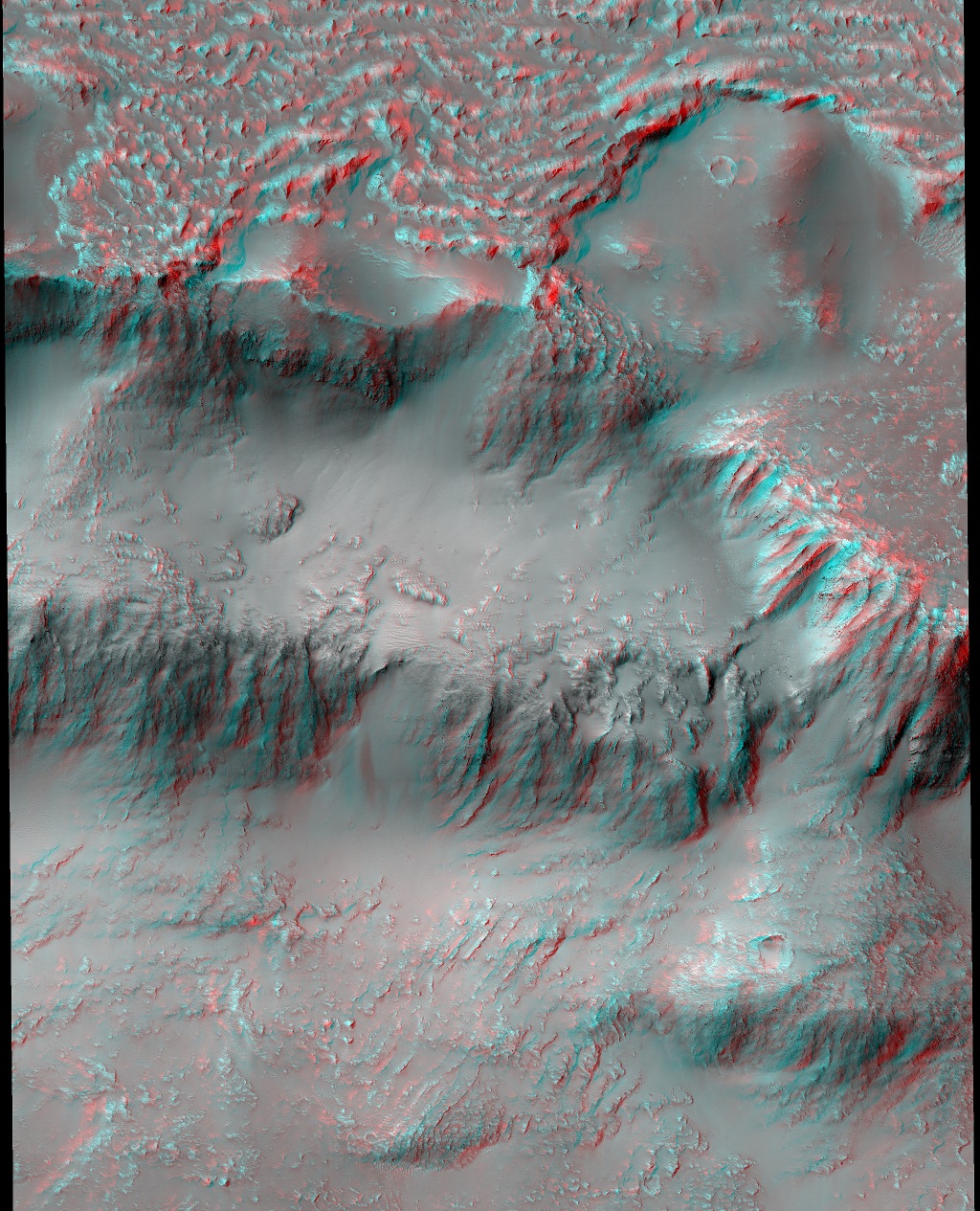
Get out your red/cyan glasses and gaze across lava falls of Mars. The stereo anaglyph was created by combining two images recorded by the HiRISE camera onboard Mars Reconnaissance Orbiter. The multi-level falls were created as flowing lava breached sections of the northern rim of a 30-kilometer diameter martian crater, located in the western part of the Red Planet's volcanic Tharsis region. As the molten lava cascaded down the crater wall and terraces to reach the crater floor it left the distinctly rough, fan-shaped flows on the steeper slopes. North is up and the breathtaking 3D view is 5 kilometers wide.

via NASA https://go.nasa.gov/2twj3IN

2017/06/30

The ‘Face’ of Jupiter


JunoCam images aren’t just for art and science – sometimes they are processed to bring a chuckle.

via NASA https://go.nasa.gov/2u6pksv

NGC 7814: The Little Sombrero in Pegasus


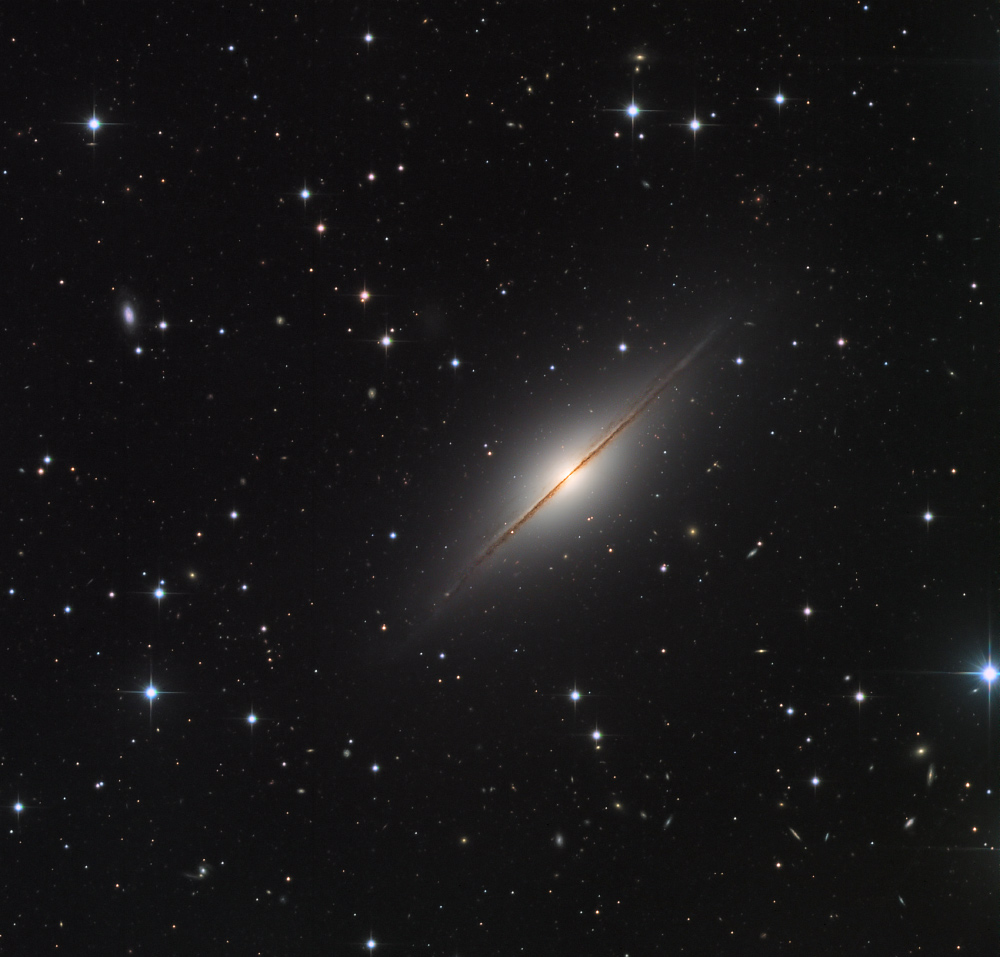
Point your telescope toward the high flying constellation Pegasus and you can find this expanse of Milky Way stars and distant galaxies. Dominated by NGC 7814, the pretty field of view would almost be covered by a full moon. NGC 7814 is sometimes called the Little Sombrero for its resemblance to the brighter more famous M104, the Sombrero Galaxy. Both Sombrero and Little Sombrero are spiral galaxies seen edge-on, and both have extensive halos and central bulges cut by a thin disk with thinner dust lanes in silhouette. In fact, NGC 7814 is some 40 million light-years away and an estimated 60,000 light-years across. That actually makes the Little Sombrero about the same physical size as its better known namesake, appearing smaller and fainter only because it is farther away. Very faint dwarf galaxies, potentially a satellites of NGC 7814, have been discovered in deep exposures of Little Sombrero. via NASA https://go.nasa.gov/2ssKYoB

2017/06/29

Starry Night and Aurora


June 29, 2017 Expedition 52 Flight Engineer Jack Fischer of NASA photographed the glowing nighttime lights of an aurora from his vantage point in the International Space Station's cupola module on June 19, 2017. Part of the station's solar array is also visible. via NASA https://go.nasa.gov/2slEU6p

重新詮釋ESBI 看懂財富的真相 《飛磚夜說》 on Y2B


Liked on YouTube: 重新詮釋ESBI 看懂財富的真相 《飛磚夜說》 https://youtu.be/J1jQBXTIgOU

Dasha Presents Update 0.6.7


战舰世界更新067

Symbiotic R Aquarii


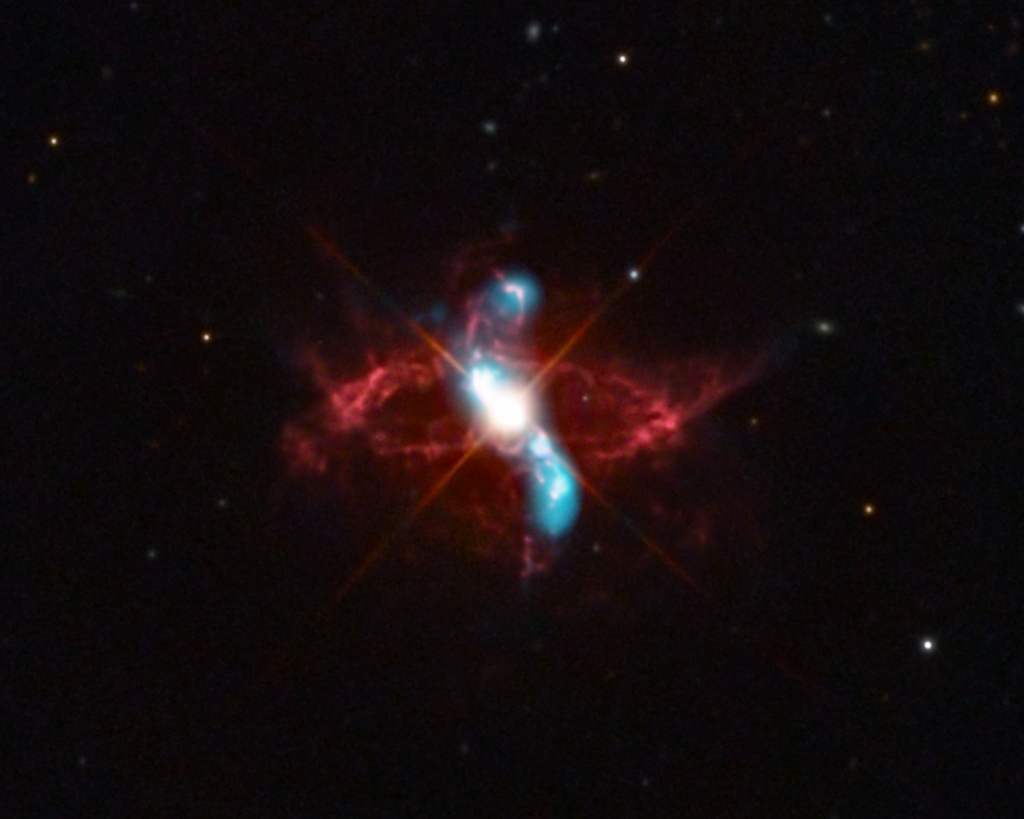
June 29, 2017 A long recognized naked-eye variable star, R Aquarii is actually an interacting binary star system, two stars that seem to have a close, symbiotic relationship. About 710 light years away, it consists of a cool red giant star and hot, dense white dwarf star in mutual orbit around their common center of mass. The binary system's visible light is dominated by the red giant, itself a Mira-type long period variable star. But material in cool giant star's extended envelope is pulled by gravity onto the surface of the smaller, denser white dwarf, eventually triggering a thermonuclear explosion and blasting material into space. Optical image data (red) shows the still expanding ring of debris originating from a blast that would have been seen in the early 1770s. The evolution of less understood energetic events producing high energy emission in the R Aquarii system has been monitored since 2000 using Chandra X-ray Observatory data (blue). The composite field of view is less that a light-year across at the estimated distance of R Aquarii. via NASA https://go.nasa.gov/2sox4Ec